Installation
Install DoubleSync into an Umbraco 17+ project. It wires itself up on first boot.
Prerequisites
Umbraco 17 or later
.NET 10
Write access to App_Data (snapshots are stored there by default)
Install the package
DoubleSync is distributed through a private NuGet feed. When you confirm your trial or your licence is issued, we email you the feed address, a username and a read-only token. The token expires with your licence, and you can ask us to revoke or renew it at any time. Add the feed to your nuget.config and map DoubleSync.* to it:
<configuration>
  <packageSources>
    <add key="nuget.org" value="https://api.nuget.org/v3/index.json" />
    <add key="doublesync" value="https://packages.double-shore.com/feeds/doublesync/v3/index.json" />
  </packageSources>
  <packageSourceMapping>
    <packageSource key="nuget.org"><package pattern="*" /></packageSource>
    <packageSource key="doublesync"><package pattern="DoubleSync.*" /></packageSource>
  </packageSourceMapping>
</configuration>
Feed credentials
Keep the token out of source control. The email contains the exact value. Provide it through the environment variable NuGet reads for that source, then add the package:
export NuGetPackageSourceCredentials_doublesync="Username=<your user>;Password=<your token>"
dotnet add package DoubleSync.Umbraco
First boot
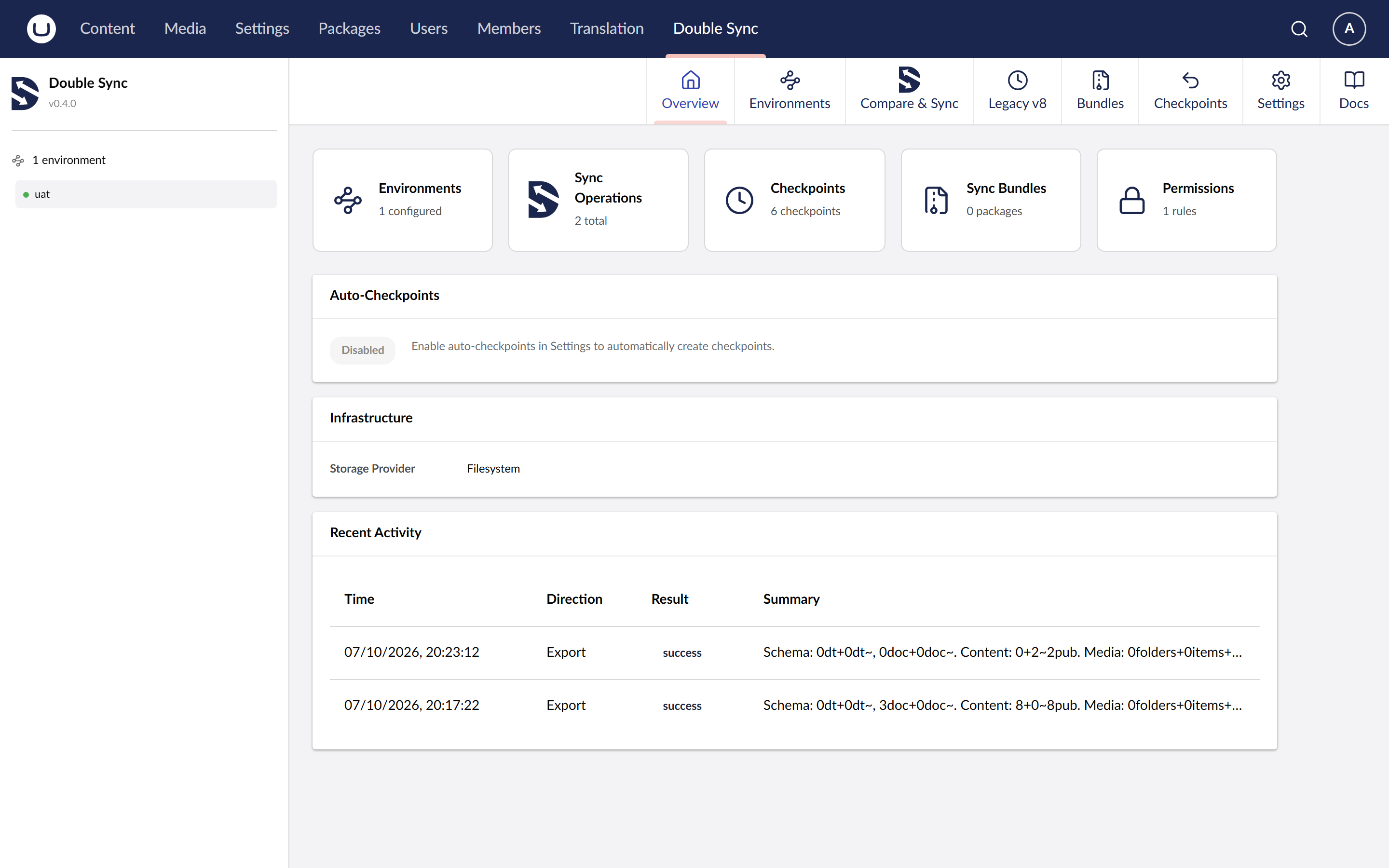
Start the site. A new "DoubleSync" section appears in the backoffice sidebar. The Community tier is active until you add a license key, schema sync and the diff preview work out of the box, with a 2-environment limit.
Optional: Azure Blob storage
If you want snapshots stored in Azure Blob rather than on disk (useful for load-balanced web apps and containers), add the storage package too:
dotnet add package DoubleSync.Storage.AzureAdd your license key
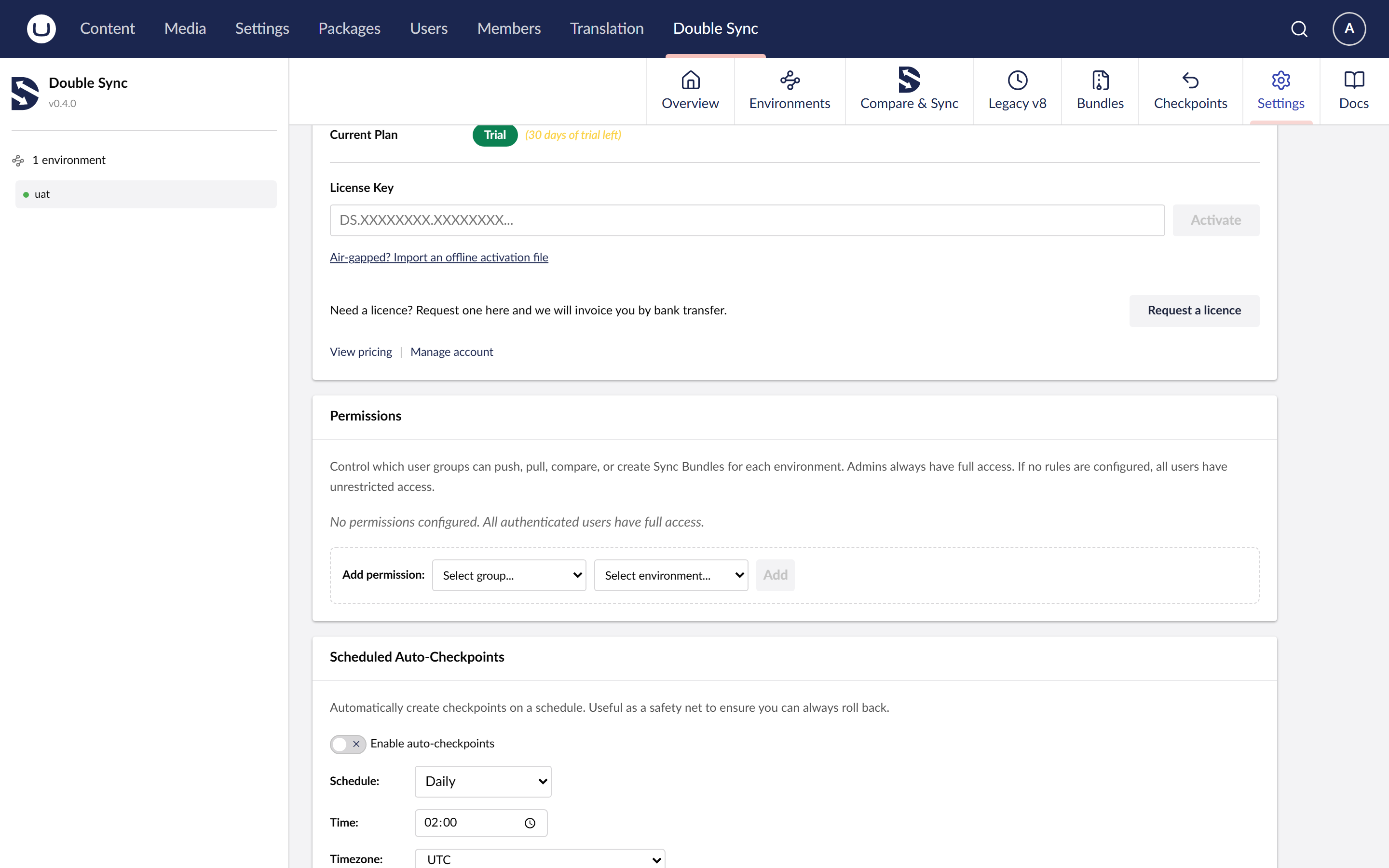
Pro, Perpetual and Agency tiers need a key. Add it to appsettings.json under the DoubleSync section. See Configuration for the full shape.
{
  "DoubleSync": {
    "LicenseKey": "DS.xxxx.xxxx"
  }
}
Next steps
Add your first remote environment from the Environments tab.
Run a Compare against it.
For single-document workflows, open any document and use the DoubleSync button in the workspace.